"Back" button
"User" menu
Main menu
"Settings" menu
After logging in:
|
"Back" button |
"User" menu |
|
| |
|
Main menu |
"Settings" menu |
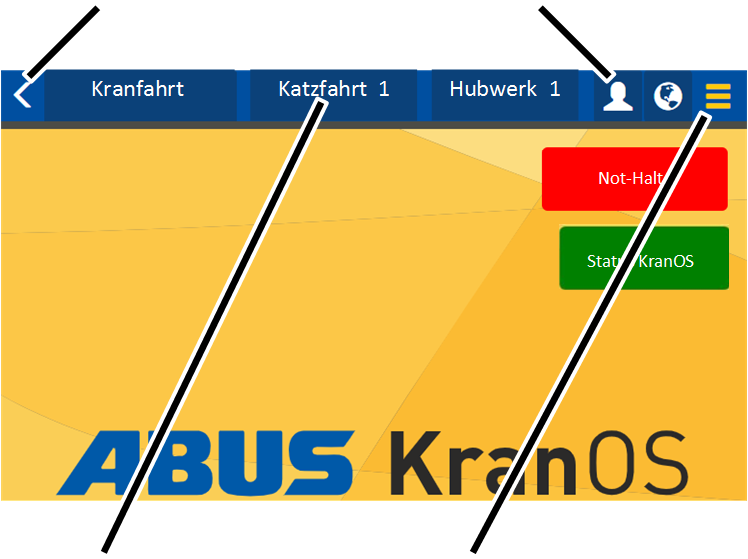
─ Main menu:
The window associated with each crane axis (crane travel, trolley travel, hoist) can be selected here. Only crane axes that are actually available on the crane are displayed.
─ "Settings" menu (three horizontal bars):
Three yellow bars: A menu with menu items that match the current window appears here.
Three black bars: No menu items are available for the current window.
─ "Back" button (yellow arrow):
Here you can switch back to each previously displayed window.
─ "User" menu (white figure):
A menu with menu items relevant to the logged in user appear here:
Change password: See Changing the password for KranOS [1]. .
Logout: See Logging out of KranOS.
In one of the windows:
|
Selection field |
Input field |
|
| |
|
Description field |
Button (blue background) |
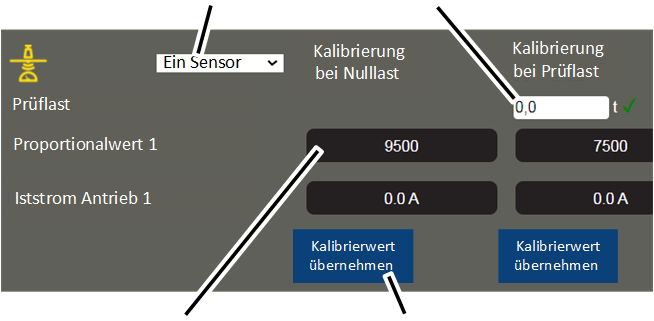
─ Selection field (white background): Here you can select a specified value from a list. See Selecting value.
─ Input field (white background): Numerical values can be entered here. See Entering value.
─ Description field (dark background): Numerical values are displayed here. They cannot be changed.
─ Button (blue background): Buttons can be clicked on. They lead to another window or perform an action.
|
|
Main menu (crane axes) |
|
| |
|
Button |
Control signals |
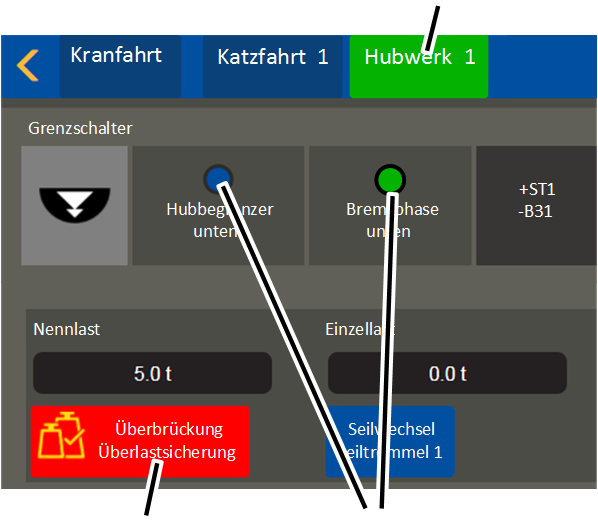
─ Main menu (crane axes) (blue or green background):
─ Control signals (blue or green):
Terminal or device has a green background: there is voltage present or the motion restrictor has not been triggered.
Terminal or device has a blue background: there is no voltage present or the motion restrictor has been triggered.
─ Button (red background): Buttons with safety-relevant functions (e.g. Bypass overload protection) have a red background as soon as they are switched on (active).