ABUControl home pageABUControl home page
Welcome to the mobile product manual for ABUControl
Comfort!
Select the programme version of your ABUControl
control:
|
|
|
|
|
|
| |
|
|
|
|
|
|
|
|
|
|
ABUControl
Comfort |
|
|
|
|
|
The programme version of ABUControl can be roughly estimated based on the crane's year of manufacture. However, there were overlaps between programme versions during a certain period of time. It is also possible that older cranes have been converted and updated, meaning that this rough estimate may not be accurate. In case of doubt, the programme version can be clearly determined using the login details.
 For a crane manufactured before the end of the first quarter of 2020
(i.e. before 31 March 2020): ABUControl is expected to run on a program version up to
1.2.0.8.
For a crane manufactured before the end of the first quarter of 2020
(i.e. before 31 March 2020): ABUControl is expected to run on a program version up to
1.2.0.8.
For cranes manufactured from August 2020 (i.e. from 1 August 2020)
onwards: ABUControl is expected to be operated with program version 1.2.0.10, 2.3.0.1
or 2.3.0.2 upwards.
In case of doubt, possible programme version updates or during the
transition period between programme versions: determine the programme version
using the login details.
By logging into KranOS, you can clearly determine which programme version ABUControl is running on. To do this, you need to log into KranOS on a trial basis.
Establish a Wi-Fi connection:
The images show a Wi-Fi connection on a PC running Windows 10. The Wi-Fi connection is established differently on other operating systems, tablet computers and smartphones.
Place the laptop as close to the crane as possible, for example
directly underneath it.
Find out the crane serial number of the crane to which the connection
is to be established.
The crane serial number is located on a sticker on the main girder, for example.
If necessary: activate the Wi-Fi adapter on your laptop.
|
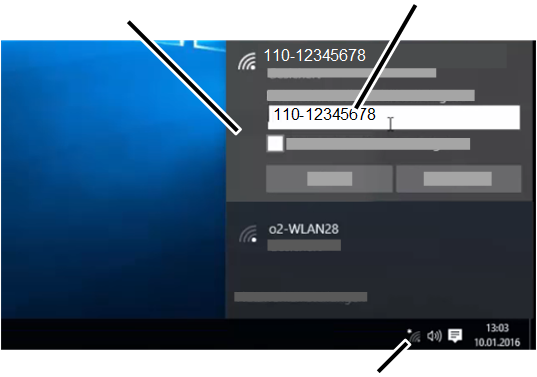
WLAN network of the crane |
Input field for network key |
|
| |
|
|
Symbol for available WLAN networks |
Image exemplarily for Microsoft Windows 10
Click on the icon for available WLAN networks in the system tray at
the bottom right.
In the list of available Wi-Fi networks, select the WLAN
network with the name (SSID) that corresponds to the crane serial number and
connect.
─ Each crane has its own WLAN network.
─ The network name (SSID) is identical to the crane serial number and is unique.
Enter the same character string again as the network key (with or
without hyphens and/or spaces, just as with the network name (SSID)).
● The laptop connects to the ABUControl Wi-Fi network.
Start the browser on the computer.
Find out your login details:
|
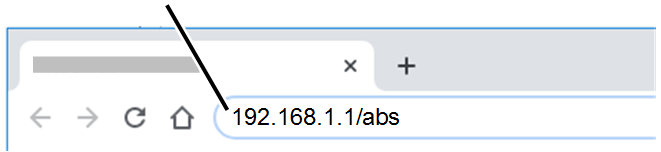
Address bar with IP address for accessing KranOS |
|
|
| |
Enter the address “192.168.1.1/abs” (or, for the second
crane of two cranes operating in tandem operation,
“192.168.1.2/abs”) in the address bar of your browser and press
the Enter key.
● When the ‘Operating data’ window appears: ABUControl is operated with program version 1.2.0.10, 2.3.0.1 or 2.3.0.2 upwards.
If an error message appears stating that the address entered could not be found:
|
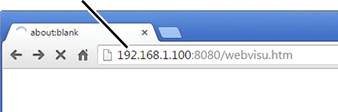
Address bar with IP address for accessing KranOS |
|
|
| |
 Enter the address “192.168.1.100:8080/webvisu.htm” (or,
for the second crane of two cranes in tandem operation:
“192.168.1.101:8080/webvisu.htm”) in the address bar of your
browser and press the Enter key.
Enter the address “192.168.1.100:8080/webvisu.htm” (or,
for the second crane of two cranes in tandem operation:
“192.168.1.101:8080/webvisu.htm”) in the address bar of your
browser and press the Enter key.
● If the “Operating data” window appears: ABUControl is running with a programme version up to 1.2.0.8.