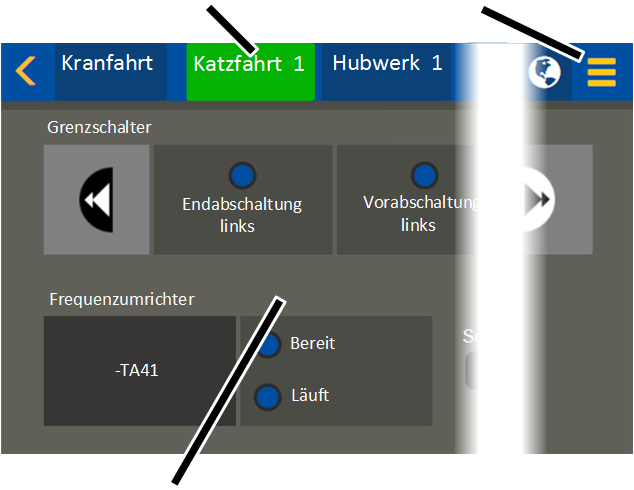
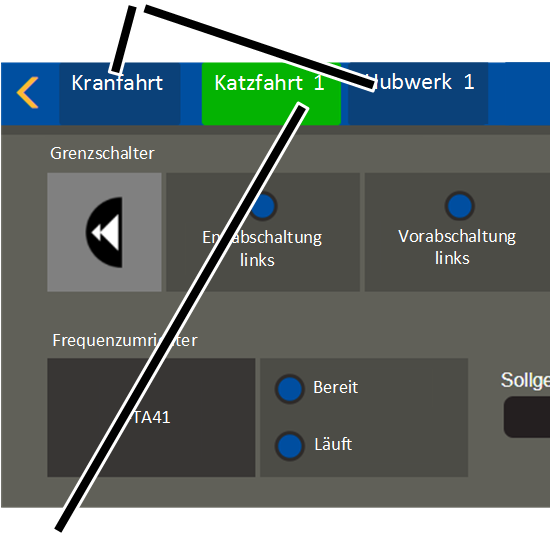
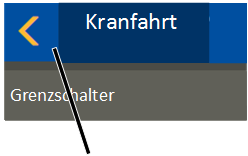
"Crane travel" menu item for crane axis
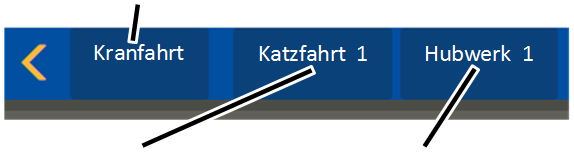
"Trolley travel" menu item for crane axis
"Hoist" menu item for crane axis
To open the menus and menu items:
|
"Crane travel" menu item for crane axis |
|
|
| |
|
"Trolley travel" menu item for crane axis |
"Hoist" menu item for crane axis |
 Click on the menu item for the
desired crane axis in the main menu.
Click on the menu item for the
desired crane axis in the main menu.
Only menu items for crane axes that are actually available on the crane are displayed (e.g. Trolley 2).
|
Selected menu item (crane axis) |
"Settings" menu |
|
| |
|
Display area |
|
● The selected menu item (crane axis) has a green background.
● The corresponding contents are displayed in the display area.
● If there are further menu items for the selected menu item (crane axis): The "Settings" menu is yellow.
Switching to another menu:
|
Other menu items (crane axes) |
|
|
| |
|
Currently selected menu |
|
Click on one of the other menu
items (crane axes) in the main menu.
● The newly selected menu item (crane axis) has a green background.
● The corresponding contents are displayed in the display area.
|
Main menu as selection field |
|
|
| |
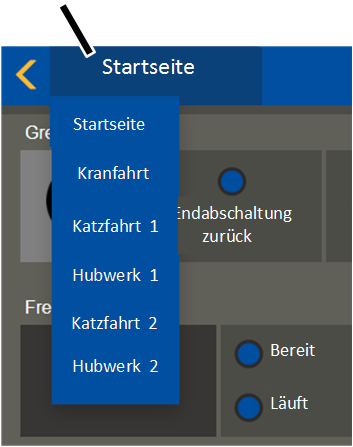
● On smaller displays (e.g. with a smaller tablet computer), the main menu for the crane axes is shown as a selection field.
Click on the "Homepage"
button.
If a different crane axis is called up instead of the homepage, this is shown on the button.
● The main menu is displayed with the crane axes.
Click on the menu item for the
desired crane axis.
Opening settings:
|
|
"Settings" menu |
|
| |
|
Menu item |
|
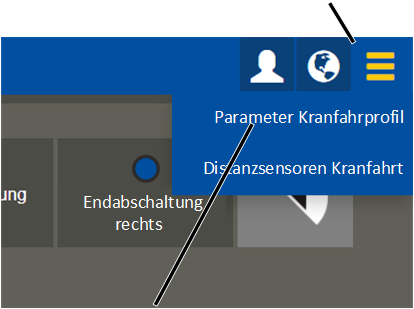
Click on the "Settings"
menu.
● A menu with menu items that match the current window appears here.
Switching back to the previous menu:
|
| |
|
"Back" button |
|
Click on the "Back" button.
● KranOS switches to the previously displayed menu item.
Switching back to the start window:
Depending on the window
displayed: click on the "Back" button once or several times.
● The start window appears.