Log in to KranOS with user
"Service" (user level [1]) or "Abnahme" (commissioning) (user level [2]). See
Connecting laptop or
tablet computer with ABUControl.
Log in to KranOS with user
"Service" (user level [1]) or "Abnahme" (commissioning) (user level [2]). See
Connecting laptop or
tablet computer with ABUControl.For analysing faults or in conversation with ABUS Service, it can be helpful to see which bus devices were recognised in the bus network. A CAN bus network is in any case present on the crane. A Modbus network may additionally be present.
For this work step, access from a laptop or tablet computer to KranOS is necessary. The user "Abnahme" (commissioning) (user level ‚[2]) or "Service" (user level [1]) must be logged in.
|
Overview: Navigation in KranOS |
|
User "Service" or "Abnahme" (commissioning) à "PLC diagnosis" à "Bus diagnosis" |
Log in to KranOS with user
"Service" (user level [1]) or "Abnahme" (commissioning) (user level [2]). See
Connecting laptop or
tablet computer with ABUControl.
In the start window: Click on
the "PLC diagnosis" menu item in the "Settings" menu (three horizontal
bars).
● The "PLC diagnosis" window appears.
Click on the "Bus diagnosis"
menu item in the "Settings" menu (three horizontal bars).
|
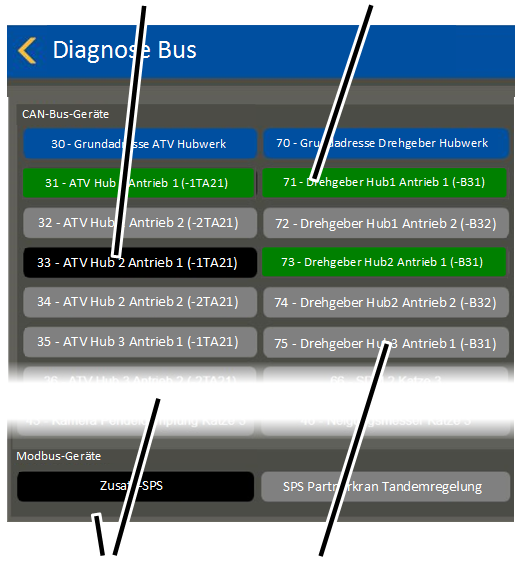
Bus device not found (black background) |
Found bus device (green background) |
|
| |
|
Upper area for CAN bus devices and lower area for Modbus devices |
Bus device not available according to configuration (grey background) |
● The "Bus diagnosis" window appears.
● CAN bus devices are displayed in the upper area and Modbus devices are displayed in the lower area.
● All bus devices that were found in the bus network are displayed with a green background.
● All bus devices that were not found in the bus network are displayed with a black background.
● All bus devices which are not available on the current crane according to the customer-specific configuration appear with a grey background.
In principle, all technically feasible bus devices that could appear on a crane with ABUControl are displayed.